
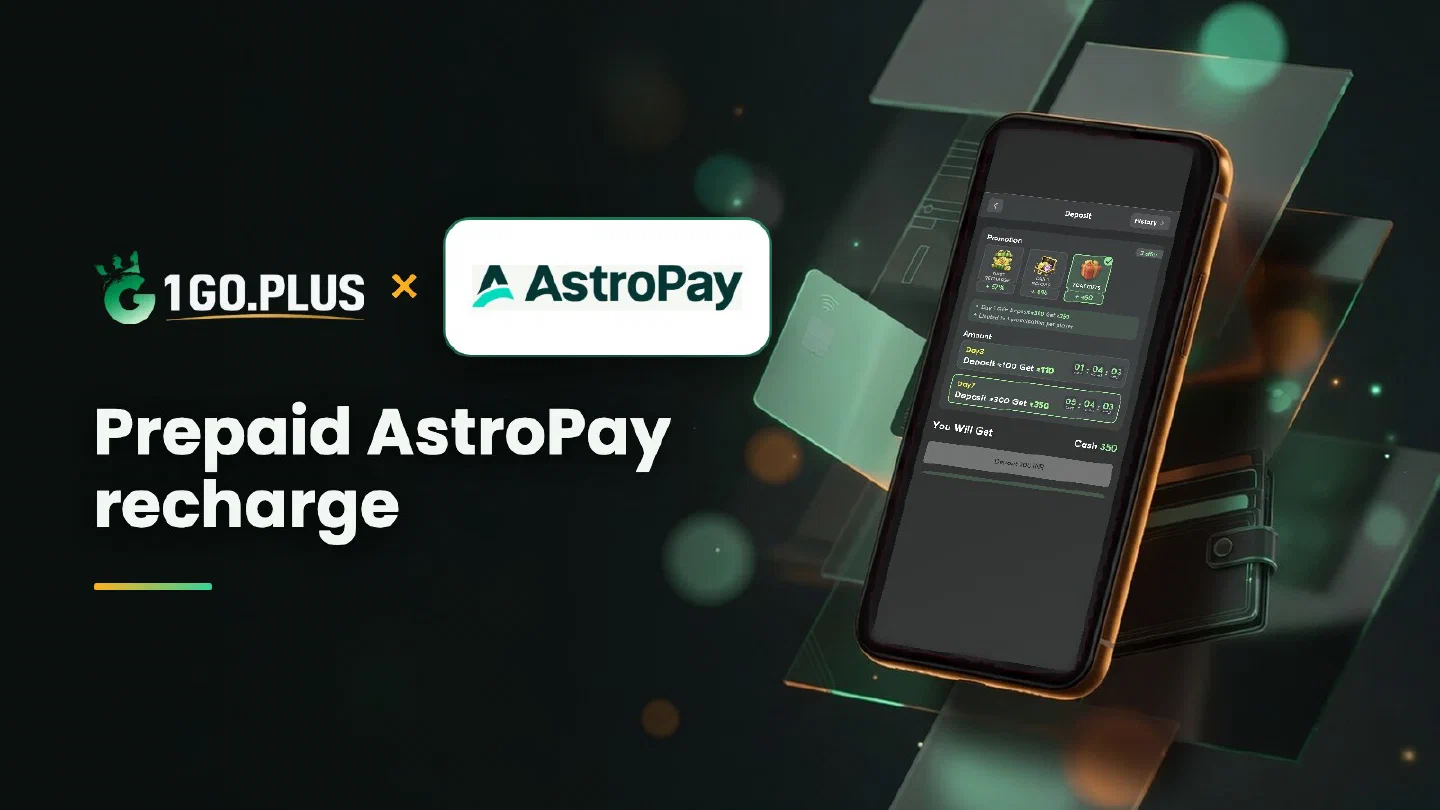
How AstroPay works at 1GO Plus
AstroPay is a prepaid balance: load it, pay from it, and let your UPI ID or bank account receive the winnings.
AstroPay is a prepaid wallet and one of the ways to recharge 1GO Plus from India. Load AstroPay, pick it in the cashier and confirm the payment, and your balance and first-deposit bonus are credited automatically. AstroPay converts the currency itself and shows the amount before you confirm, so the figures are in front of you. Winnings go out to your UPI ID or bank account, where withdrawals usually land in about 5 minutes, and a bank may sometimes add a little time. If a payment looks approved but your balance is still catching up, the checklist below helps. All other methods are in all payment methods.
How to recharge 1GO Plus with AstroPay#
Use an AstroPay account in your own name and complete its verification inside AstroPay; the wallet is then ready for your first recharge.
- Load AstroPay with at least the amount you plan to recharge.
- Tap the + next to your balance to open the cashier, pick AstroPay and enter the amount.
- Check the converted amount on the AstroPay screen and confirm it.
- Your balance updates when the order completes, and the first-deposit bonus is added automatically.
What if the AstroPay balance is lower than the recharge#
Top up AstroPay with its own options, then repeat the payment in the cashier. The cashier shows whether to continue the same order or open a fresh one.
Currency conversion: what the AstroPay screen shows#
Your order shows one amount, and AstroPay shows it in your wallet currency whenever a conversion applies. Three places tell the full story:
| Where you look | What you see |
|---|---|
| The 1GO Plus order page | The amount of your order |
| The AstroPay confirmation screen | The amount in your wallet currency and any conversion |
| Your AstroPay history | The record of the operation, ready for a screenshot |
Compare the figures before you press Confirm; the screenshot from your history is handy if you ever open a Payment Ticket.
AstroPay approved the payment, but the balance is waiting#
Both sides need to show the same payment before the order closes. These five steps get them together:
- Order status. The order page shows the expected time and when to contact support.
- Amounts. The amount in the order matches the amount in AstroPay.
- Screenshot. Save the AstroPay operation as a screenshot.
- Payment Ticket. Open one under the order and attach the screenshot.
- Support. Send the order ID and the time to bonus support.
Stay on the same order while it completes. Late payment? The Payment Guarantee compensates late deposits, up to 100% of the amount.
Cash out after an AstroPay recharge#
Winnings go to your UPI ID or bank account, the cash-out routes of 1GO Plus for India. Withdrawals to your UPI ID or bank account usually land in about 5 minutes, and your bank may take longer.
- Open Withdraw and choose Add UPI Account (name and UPI ID) or Add Bank Account (account number and IFSC), in your own name.
- Request an amount within Withdrawable and press the withdraw button.
If a payout is late, a Payment Ticket with the PDF bank statement from the time of the withdrawal helps support find it. Wager your deposit once and the withdrawal goes out free of commission, and 1GO Plus may ask for an ID, an address proof or a selfie first.
Why Withdraw does not go through#
- Withdrawable can be smaller than your total balance — it shows what you can take out now.
- Turnover Requirement shows the turnover still open from a bonus; see withdrawal after a bonus.
- Daily Limitation is today’s maximum and rises with your VIP level.
A Weekly Pass starts at ₹300 and returns up to 160% of the pass price over 7 days.

AstroPay, Jeton or UPI#
| Your situation | Pick |
|---|---|
| You want to cap the amount in advance | AstroPay |
| A separate wallet for a monthly budget | Jeton |
| A quick payment from your phone | UPI |
Winnings go to your UPI ID or bank account in every case, and the first deposit cashback and recharge bonus are credited automatically. Prefer to approve in an app on your phone? See the MuchBetter recharge guide.